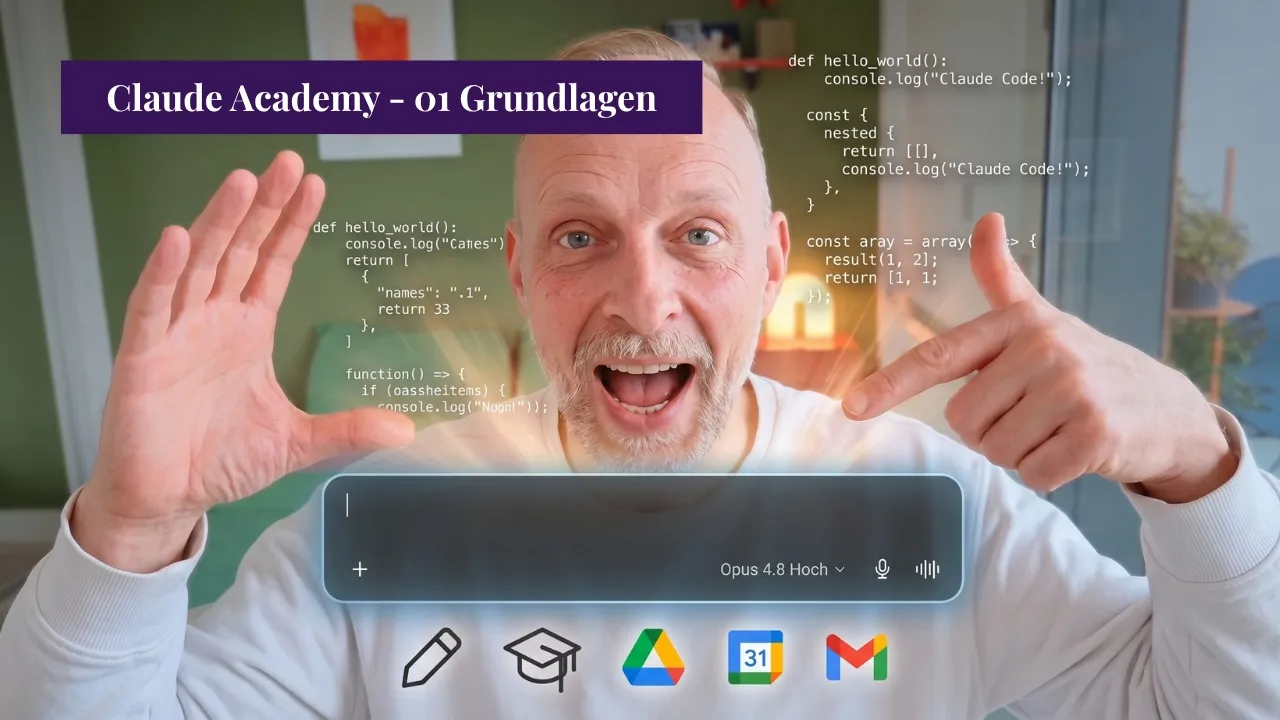
Claude Academy: Set Up Claude for 2026 u2013 Licences, Models, Prompts and Settings that 90% Miss
Claude is more than just a chat window. Set it up correctly, and you will work ten times faster than someone who just types and hopes for the best. Claude works with structured plans, feedback loops, external tools, and specialised skills. This post explains exactly what you need: the right licence, the right model, key settings, and ten prompt hacks to save you time every day.
Download the free cheatsheet:
I recently described switching from ChatGPT to Claude in a dedicated post – including migrating chats, projects and custom GPTs. I have used Claude exclusively for months, having cancelled my ChatGPT subscription, while occasionally using Gemini for a few lifestyle tasks.
First, the licence – choose wisely from the start
Before your first click, ask yourself: are you working alone or with others?
For individuals, there are three tiers. Free is the starting point – limited, a few chats, no memory management, not really usable for real work. Pro costs $20 per month, giving you the full model selection, Projects and Memory. Max is the heavy-user tier with significantly more usage quota – sensible if you work in Claude all day.
However, as soon as even one other person collaborates – as a freelancer with a partner or in a company – the Team account becomes essential. Team Standard costs $25 per seat, with a minimum of 5 seats, meaning a starting cost of $125 per month. This can seem high for smaller firms. Tip: the five seats do not all have to come from your company – you can invite your student daughter or a sparring partner.
The critical point: there is no migration path from Individual to Team. If you start with Pro, set everything up cleanly – projects, skills, instructions – and want to switch to Team later, you start from scratch. You have to set up everything again. Avoid this by choosing Team from the start as soon as you know multiple people will collaborate. Within a team, there is also the Premium Seat for $125 per month for heavy users.
The five interfaces – where Claude runs
Claude is not just for the browser. There are five different interfaces, depending on the task and device.
claude.ai Web and Mobile is the standard – just like you know from ChatGPT. For spontaneous tasks, projects and uploads. The mobile app runs on the same account; chats are available on all devices. Issue a task on your phone on the train, then continue working on your laptop later.
Claude Desktop is the locally installed app for PC and Mac. It contains the same chat as the web – plus two special modes: Cowork and Claude Code.
A normal chat is fleeting: good for spontaneous questions, brainstorming and ad-hoc tasks. Cowork is different. Claude saves processes, decisions and key inputs permanently in local files – and accesses them in the next session. Anyone wanting to edit something regularly and consistently belongs in Cowork. Moreover, Cowork splits complex inquiries into subtasks and agents automatically.
The best analogy: chat is a quick chat with a colleague at the coffee corner. Cowork is a weekly workshop with a clear agenda, multiple colleagues and specialists, source documents, instructions and notes from previous sessions. Cowork is the reason I now work almost exclusively in the desktop app – my next post will detail everything it can do.
Claude Code is aimed at developers. Terminal-based, no IDE required. Just type claude in the project folder, and an agent starts in the terminal. Billing is handled via API tokens, topped up separately. If you do not want to work in the terminal, you can use Claude Code directly from the desktop app.
The Chrome Extension is highly recommended. It brings Claude to any website – with two benefits. First, Claude chats directly with the open page and can operate it. Second, and this is the real leverage: for certain tasks, Cowork accesses this extension and navigates your browser. Many sites block AI bots, and many are rendered entirely with JavaScript – conventional web scraping fails there. The extension runs in your own browser context, with all your cookies and logins. Claude opens the page, fills out form fields if needed, clicks through and reads the information. If you ask "What did I last order from Galaxus?", you get an answer – the extension opens the order page and reads it. You must approve this beforehand, of course. Careful with one-click checkout enabled: state in your instructions that Claude must ask explicitly before any purchase.
The Word and Excel add-on brings Claude directly into Microsoft Office. Not just writing and formatting text in Word, but especially in Excel: analysing data, developing formulas and cleaning up tables – without copy-pasting. Configurable with a custom skill so outputs match your corporate design. If you use Google Suite, you do not need it. Fun fact: the add-ons beat Microsoft's Copilot by miles.
Which model for what
Four model lines are available in the model picker. Think of it simply: from first-year intern to senior.
Haiku 4.5 is the fastest and cheapest model – the first-year intern. For simple, quick tasks: answering a short question, extracting info from a brief text, generating a summary. Anything where you do not need deep thought and just ask your "intern": What does the contract say?
Sonnet 4.6 is the standard for around 90 per cent of all tasks – the experienced employee with a few years under their belt. Content creation, some coding and debugging, light reasoning – thinking briefly before outputting. Sufficient for almost everything in daily business. It does not need to be super precise: not the annual accounts of a listed company, but quickly summarizing an Excel sheet from financial software. This is the default in Pro and Team subscriptions.
Opus is the powerful model – no longer an intern, but the senior. Complex analyses requiring multi-step reasoning, high precision, massive PDFs and text volumes, detailed summaries and reports.
With Opus, looking at the versions pays off – here is a clear recommendation:
Opus 4.6 was the go-to standard for a long time: a bit like Sonnet, but better, with multi-step reasoning.
Opus 4.7 followed and was mainly more expensive, but not really better. 4.7 makes no sense to me – either 4.6 is enough, or you go straight to 4.8. You can skip the step in between.
Opus 4.8 is exceptionally good and is my choice when 4.6 is not enough. Plus, it introduces thinking modes.
The thinking modes of Opus 4.8
Opus 4.8 can run in different thinking modes: low, medium, high and max. These control how much Claude thinks before answering – and thus how many tokens it consumes.
While you can select these modes in Sonnet, you can safely ignore them as the model is cheap anyway. With Opus, conscious choice pays off. My rule of thumb: if a task is demanding and Sonnet might struggle, I use Opus 4.8 in high mode. If it is less demanding, I switch to medium or low.
Be careful with Max mode. It consumes a vast number of tokens and burns budget quickly. Think carefully if it is worth it – I rarely need it. And regardless of the mode: "Thinking" should always be enabled. Without thinking, the model just fires from the hip.
Fable 5 – the new flagship model
Fable 5 is brand new (launched 9 June 2026) – a smaller offshoot of the legendary Mythos class, but currently the best benchmarked model available. This is one I am still testing myself.
Its domain is truly tough cases: demanding coding tasks, intense analyses, and agents running for several hours or days without getting tangled – where simpler models stumble. In practice, I like to have Fable 5 challenge entire Opus chats: it finds gaps, and I then return to Opus with the new insights to continue working.
The catch: Fable 5 is hungry and easily consumes twice the tokens, sometimes more than Opus. For typical office work, this is complete overkill. In rare cases, it makes sense – but then the quick switch is worth it.
Why switch at all? Because tokens are limited and cost money. A powerful model for a trivial task is wasted budget. Over time, you develop a feel for which model fits which task.
Instructions – the most important setting
Instructions are permanently stored rules that are active in every chat. They extend the system prompt that runs with every query. Write once, never type again.
You find them under claude.ai/settings/general → "What personal preferences should Claude consider in your answers?".
What belongs there: who Claude should be, where he works, writing style, language, spelling, tone (formal or informal), industry terms, and guardrails. A setup for a Swiss SME might look like this:
The last two points are crucial. ChatGPT was a pleaser from the start – every idea was "great". Claude is more objective, but it helps to write this in explicitly. Furthermore, LLMs have a knowledge cutoff months in the past. If you do not specify that Claude must search first for current questions – new tool versions, models, prices – you will receive outdated answers without warning.
Instructions do not need to be exhaustive, as there are other customization options (projects, skills). They are not a static document – they evolve. Whatever repeatedly annoys you goes in.
Key Settings
Under claude.ai/settings/general → Capabilities, there are settings that simplify daily work considerably:
Turn on answer notifications. Receive a push notification on your phone or Apple Watch when Claude finishes a task – allowing you to work on something else in the meantime.
Turn on search and reference chats. Over time, you lose track of which chat contained what. With this setting, Claude finds old chats and continues working with them.
Turn on long-term memory. Claude remembers relevant patterns and corrections for future chats – for example, that you always want emails written in a specific style.
Load tools as needed is one of the most critical switches. If you have connected many connectors, you otherwise load all tools with every query – which wastes context window space. This makes a noticeable difference from around 10 connectors upwards. Never use "Always load".
Otherwise: enable whatever capabilities you need.
Skill Creator – the default skill
Under Customisation → Skills, one skill should be installed from the start: the Skill Creator. It allows Claude to develop good skills with you. It is usually there by default – just double-check that it is active. What skills actually are will be covered in subsequent posts.
Data privacy – before you start
An often-overlooked point. With Pro and Team, your data is fundamentally not used for training. However, the server location is currently in the US – even for Team – not in Switzerland or the EU. Under the US Cloud Act, the US government could theoretically access data. Depending on your industry, this can be an issue.
Therefore: content protected by strict NDA, personal data, bank details, logins and API keys do not belong in Claude. For such cases, European models like Mistral with EU servers exist – or you can connect Claude Desktop to LLMs hosted locally or in Switzerland. I will show how to do this in a separate video.
A quick refresher: How an LLM is structured
To make sense of the settings, the big picture helps – this applies to Claude, ChatGPT, Gemini or Mistral. You ask a question (user prompt). In the background runs the system prompt defining ground rules. Add to this the context you provide (Excel files, PDFs, company info), the model's general knowledge up to its cutoff, memory with your preferences, and tools Claude uses (e.g., to read or write emails). Guardrails sit above everything. All of this combines to generate the answer.
The critical term is the context window – the short-term memory. For Claude models, this is typically around one million tokens, roughly five novels (depending on language, as longer words break down into multiple tokens). It sounds like a lot, but fills up faster than you think – images and large PDFs consume context quickly. A new chat starts empty, the context fills up, and eventually, Claude starts forgetting. Therefore: use context sparingly. I covered the basics of this in the first post of the series.
Prompting in one sentence
Prompting is not as critical as it was three years ago, but the basics pay off. Tell Claude who he should be and what he should do, provide enough context – especially for company-specific matters, also using additional files – and specify the desired output format. The first answer is never perfect: iterate. Do not fire off feedback point by point; group it instead – read through the text and provide five to ten points at once. And if you do not know how to phrase the prompt: ask Claude what he needs to know. For inspiration, the Google Gemini Prompt Guide is excellent – just search for it.
Ten prompt hacks from daily practice
Ask me 10 questions. For vague or new tasks, ask Claude to ask you ten questions. Target audience, format, tone, timeframe – the output becomes far more precise.
Make 2 suggestions. Requesting two suggestions shows you the bandwidth. Then cherry-pick.
Pre-output check. "Before you output, check again that all figures are correct." A necessity for proposals, contracts or calculations.
Edit mid-chat instead of writing further. Go back to the last good prompt and edit it there. This creates a new branch and discards the confused context.
Cross-use other LLMs. Submit the same strategic question to Claude and Gemini simultaneously. This often produces a better plan.
Do not prompt with anger. Aggressive prompting leads to timid outputs. Critical stance yes, aggression no.
Structure prompts like brief documents. Persona, Task, Context, Format.
No preamble. Adding "no preamble" at the end gets Claude straight to the point.
Be brutal, no yapping, Devil's Advocate. This prompts Claude to roast your work instead of just validating it.
Think step by step. This makes Claude expose errors before they reach the output.
Bonus – Few-Shot and Multi-Perspective. "You are an experienced ghostwriter" – then generate the same text from multiple perspectives (e.g., from a CEO perspective, then from middle management) and merge them at the end. Works exceptionally well.
Three terms that will be important in the next post
Connectors and MCP – MCPs (Model Context Protocol) are interfaces connecting Claude directly to external tools: CMS, email marketing, calendars, CRM. No more copy-paste. This is why I switched my CMS and newsletter tool, for example – because official MCPs exist for them.
Skills and plugins – Skills are saved instructions for specific tasks: a skill for proposals in corporate design, one for search engine advertising reporting, another for writing style. Plugins bundle multiple skills and connectors into an installable package.
Markdown and MD files – Markdown is a simple markup language: **bold**, # Heading, - List. Claude processes MD files better than PDFs: they are more structured, searchable and token-efficient. Claude reads CLAUDE.md files automatically at startup.
Next post: Claude Cowork – where 90 per cent of daily work happens. Tasks instead of chats, routines, local files and agents working in parallel.